
1. Navigate to On Market → Automated
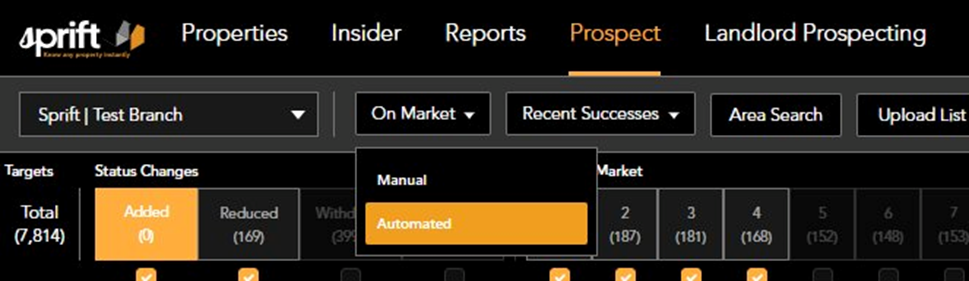
From the top navigation bar, click Prospect. In the sub-navigation, click On Market. A dropdown will appear with two options: Manual and Automated. Select Automated.
2. The Automation Page
After selecting Automated, you will land on the On Market Automation page. Any existing active automations are listed here. To create a new one, click the New button in the top-right corner.

3. Configure Your Filters
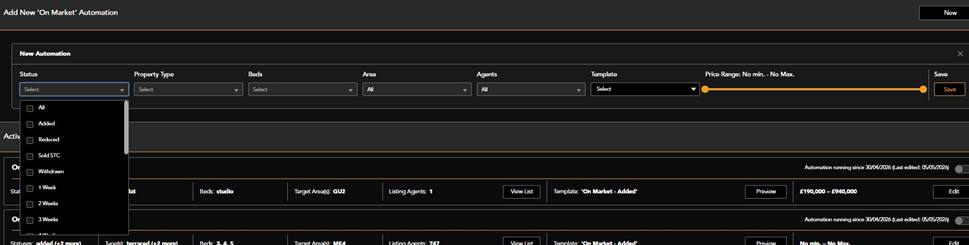
A New Automation panel will appear. Work across each filter field from left to right. All fields are required except Price Range, which is optional.
- Status - select one or more listing statuses (e.g. Added, Reduced, 1 Week, 2 Weeks, 3 Weeks etc.)
- Property Type - select one or more types (e.g. Semi-Detached, Terraced, Flat)
- Beds - select the bedroom count to target
- Area - select the outcode(s) for this automation
- Agents - defaults to All; deselect specific agents to exclude their stock
- Price Range - use the slider to set a min/max, or leave at No min. – No Max.
4. Select a Template
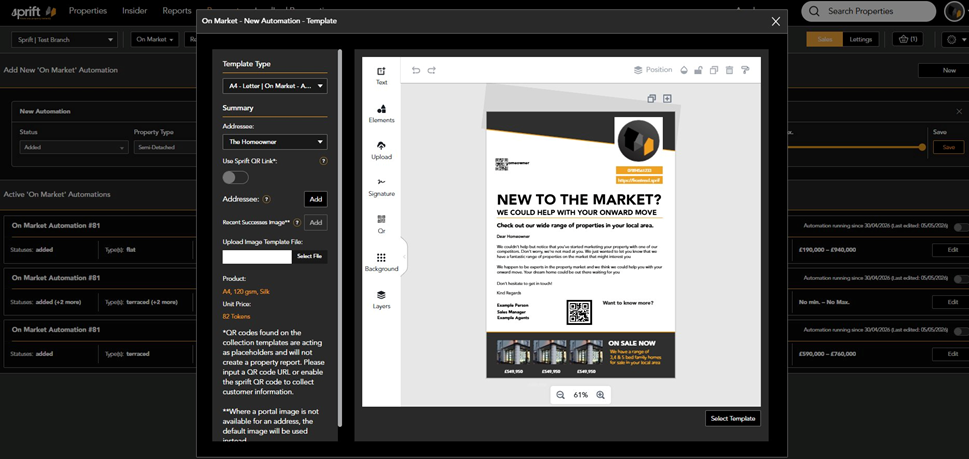
Click the Template field and choose Select to open the template picker. Review the template preview on the right-hand side before confirming your selection. Key details to check:
- Template Type - ensure it matches the status you are targeting (e.g. On Market – Added)
- QR Code - if the template contains a QR code, ensure a valid URL is configured or enable the Sprift QR link
- Once satisfied, click Select Template to assign it to the automation
5. Save and Activate
Once all fields are configured, click Save on the right-hand side of the automation row. The automation will appear in the Active ‘On Market’ Automations list. Use the orange toggle on the right to enable it — the automation will begin running automatically from this point.

💡 TOP TIP
Create separate automations for each status (Added, Reduced, 6 Weeks etc.) so you can assign a tailored template to each one. A single automation targeting multiple statuses with a generic template will produce weaker results.
Reviewing Your Automated Orders
Once an automation has run, you can track and review the campaigns it has generated through Order History.
6. Access Automated Orders
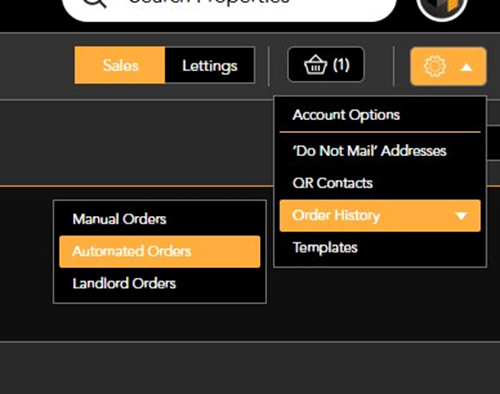
Click the settings/cog icon in the top-right corner of the screen. From the dropdown, hover over Order History to expand the sub-menu. Select Automated Orders to view all campaigns generated by your automations.
7. Review Completed Campaigns
The Completed Campaigns screen shows a full record of every automated campaign that has been sent. Use the Pending and Completed toggle buttons to switch between campaigns awaiting send and those already despatched. Key columns to review:
- Campaign Name - the property address targeted
- Order Reference - unique reference for the order
- Status - confirms the campaign type (e.g. On Market)
- Types / Beds - the property filters that triggered the campaign
- Send Cost - token cost for the send
- Campaign Creator - the user whose automation triggered the send
- Send Date - the date the campaign was or will be despatched
- Mailer Quantity - number of mailers sent
- Summary - click View for full campaign detail

Quick Reference
A summary checklist for setting up any new automation:
|
Prospect → On Market → Automated |
|
Click New |
|
Set Status trigger(s) |
|
Set Property Type, Beds, Area |
|
Configure Agent exclusions (if needed) |
|
Set Price Range (or leave as No min. – No Max.) |
|
Select and preview Template |
|
Click Save |
|
Enable the orange toggle to activate |
|
Check Order History → Automated Orders after first run |